
MCP
MCP lets an AI client use Alma’s tools directly — ask Claude Desktop about an account and it can read your Memory; ask it to file something and it can, if allowed.
Connect
Section titled “Connect”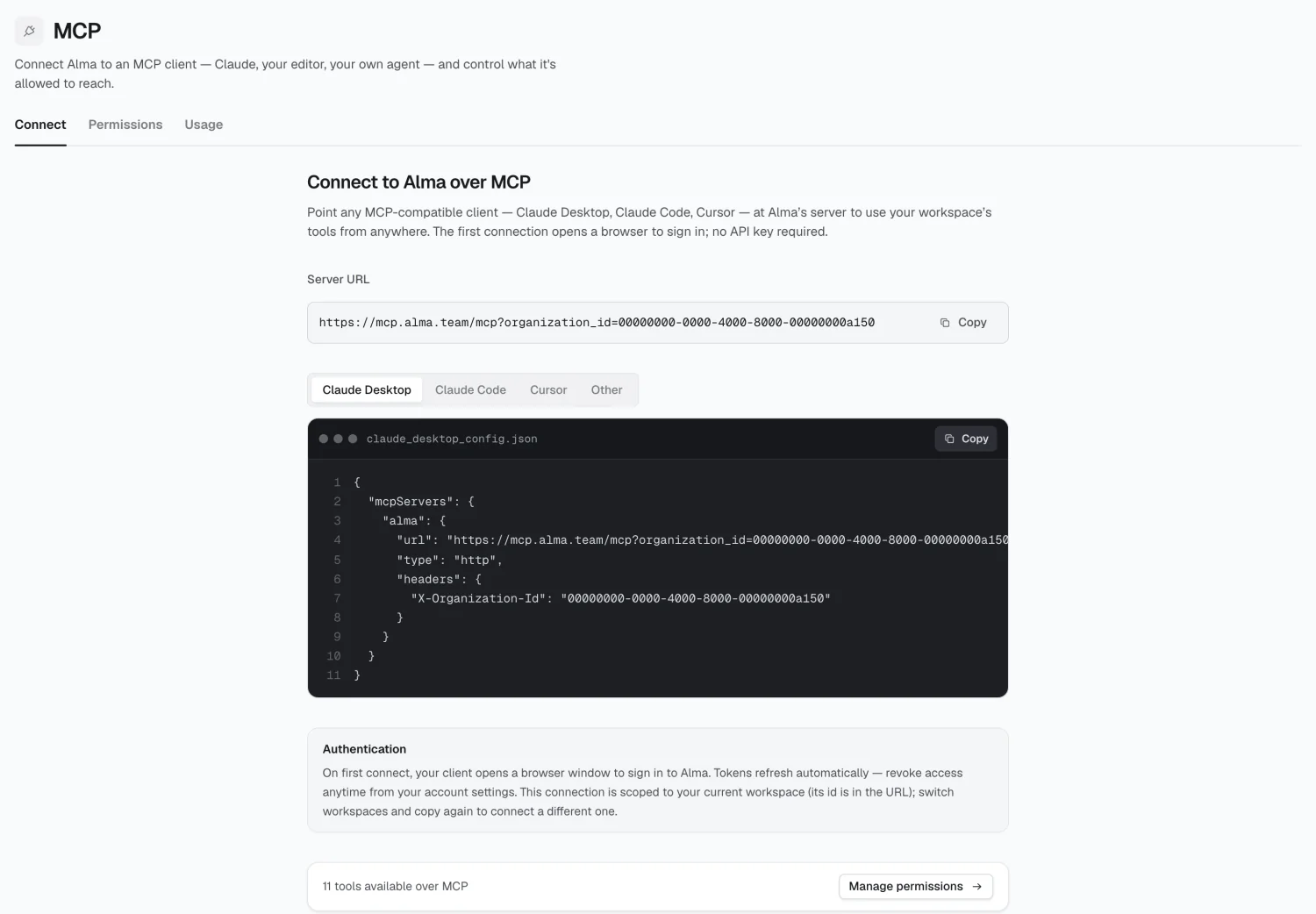
Your workspace’s server URL:
https://mcp.alma.team/mcp?organization_id={your-org-id}Copy it from the Console — it includes your real organization ID.
No API key required. On first connect, your client opens a browser to sign in to Alma, and tokens refresh automatically after that.
Client setup
Section titled “Client setup”Add to claude_desktop_config.json:
{ "mcpServers": { "alma": { "url": "https://mcp.alma.team/mcp", "type": "http", "headers": { "X-Organization-Id": "your-org-id" } } }}claude mcp add --transport http alma https://mcp.alma.team/mcp \ --header "X-Organization-Id: your-org-id"Add to .cursor/mcp.json:
{ "mcpServers": { "alma": { "url": "https://mcp.alma.team/mcp", "type": "http", "headers": { "X-Organization-Id": "your-org-id" } } }}Multiple workspaces
Section titled “Multiple workspaces”The organization ID picks the workspace. To connect a different one, switch workspaces in the Console and copy the URL again.
Leave the organization ID off to use one connection across every workspace
you belong to. Each tool then takes an organization_id argument, and if your
client doesn’t send one, Alma answers with the list of your workspaces to
choose from.
Permissions
Section titled “Permissions”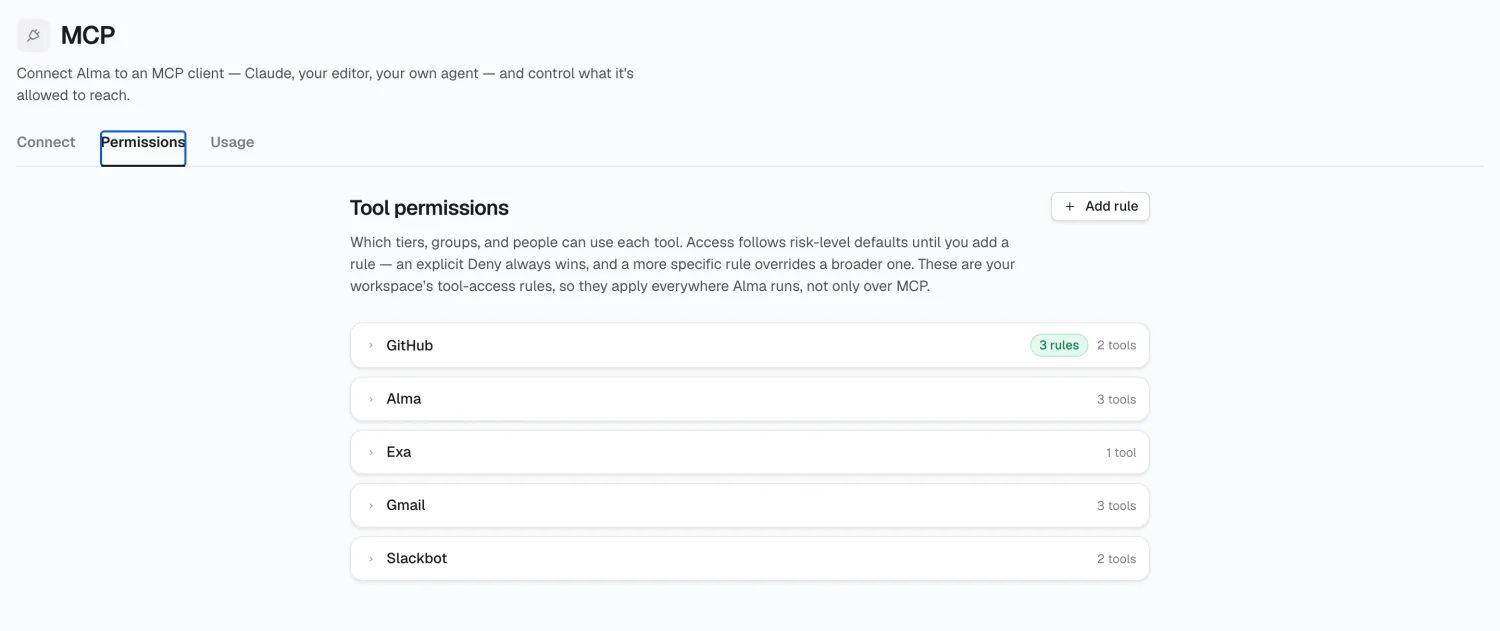
This isn’t an MCP-specific permission screen — it’s the same workspace-wide tool-access ruleset shown on a connection’s Access tab, grouped by toolkit. Editing it here changes what workflows and chat can do too. Admins and implementors only.
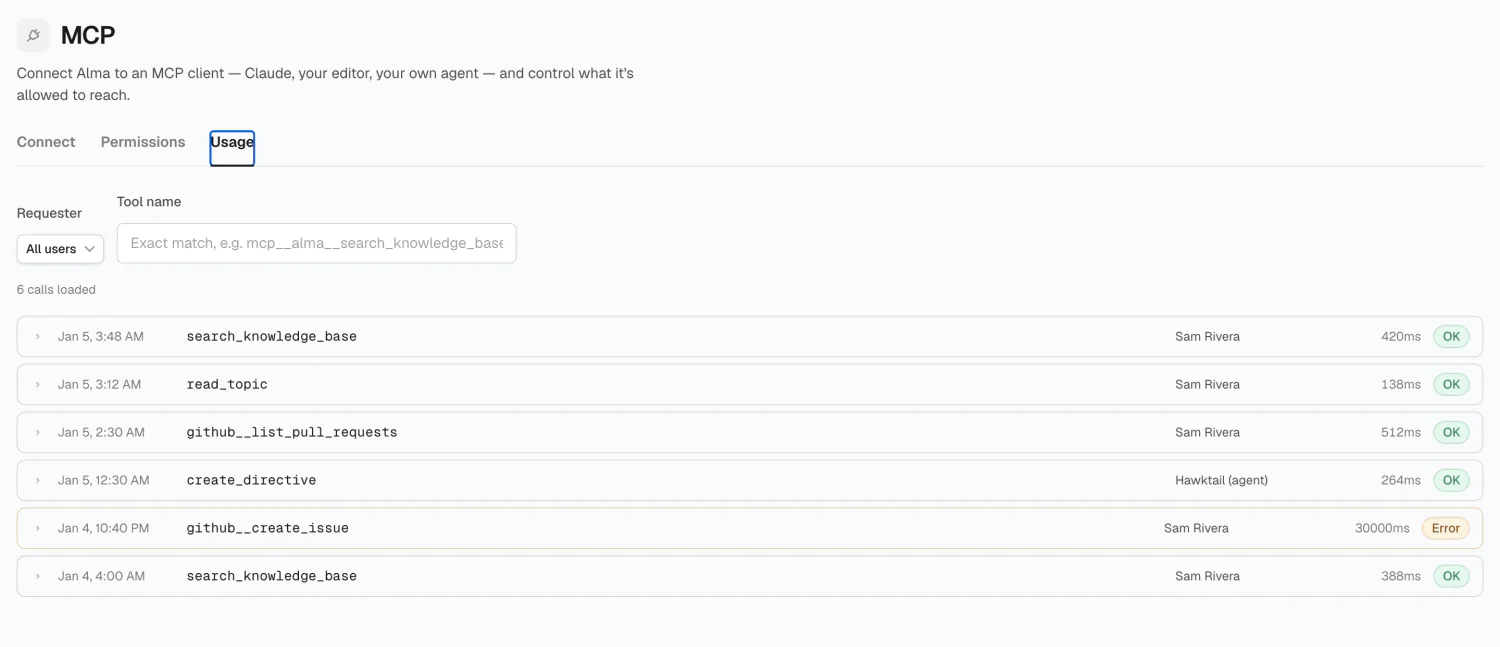
Every tool call made by an external MCP client — who called what, when, and how it resolved. Filter by tool or by person.
Admins and implementors only.
2026 Alma