
Building workflows
A workflow is built on its harness: the canvas showing the graph, laid out as Triggers → Steps → Result.
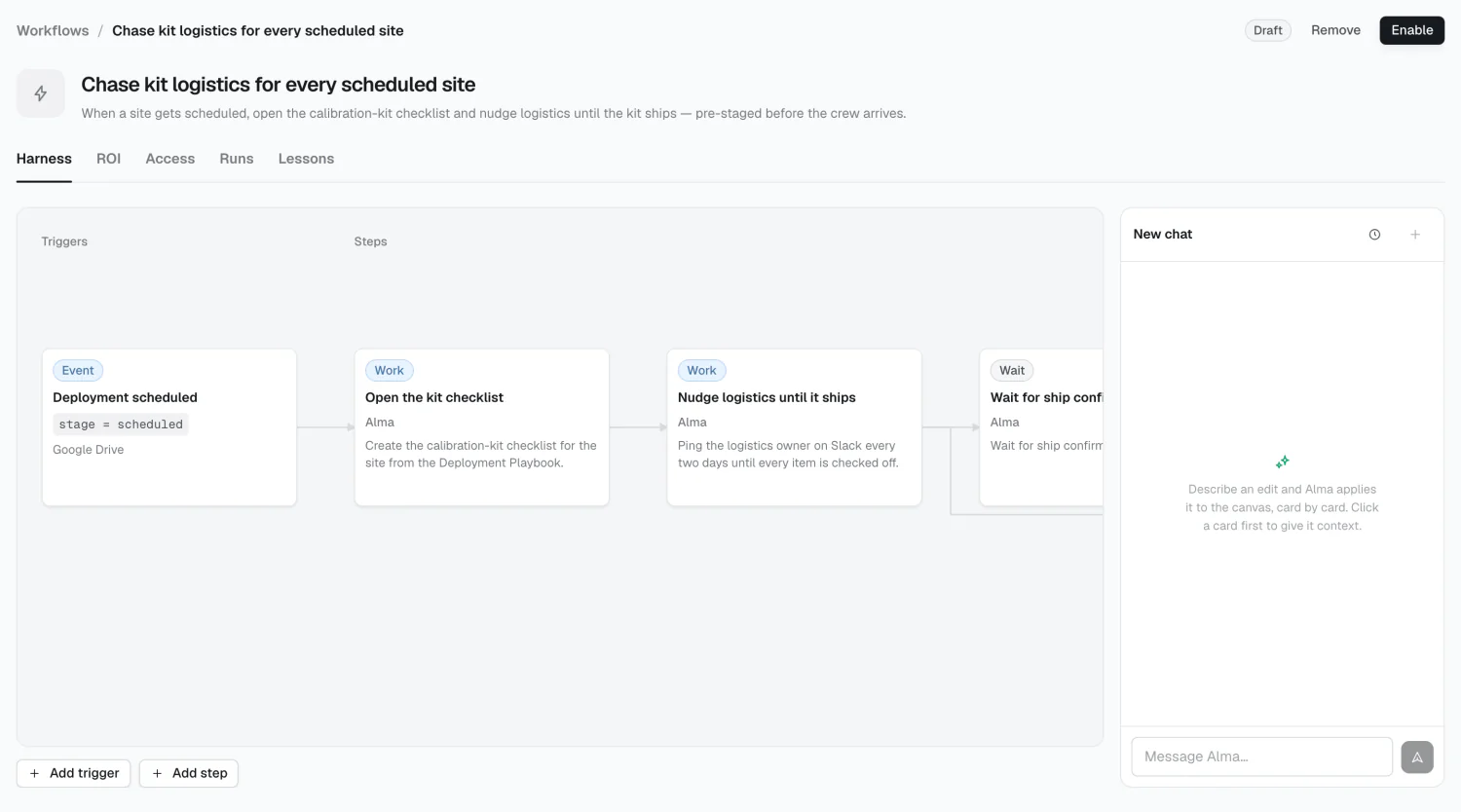
A workflow is inert until you enable it, so everything on this page is safe to experiment with.
Creating a workflow
Section titled “Creating a workflow”Click New workflow and give it a name. You get an empty draft. Add a summary from the line under the title — Alma uses it, and so does the next person who opens the workflow.
Triggers
Section titled “Triggers”A trigger starts a run. Two kinds:
- Schedule — a cron expression, like
0 9 * * 1for 9am every Monday. - Event — something happened in a connected tool.
Add trigger creates an event trigger. To create a scheduled one, add a trigger and switch its type in the editor.
Each step has a kind:
| Badge | Means |
|---|---|
| Work | Does something |
| Approval | A person decides |
| Wait | Pauses for a condition |
| Branch | The path splits |
And an actor: Alma, a Person, a System, or something External.
Editing a step
Section titled “Editing a step”| Field | Notes |
|---|---|
| Step name | Required |
| Instructions | What Alma should do at this step |
| Model | Workflow default, or pin to Sonnet 4.6, Opus 4.6, or Haiku 4.5 |
| AI Approval | On the Approval tab: Alma checks the output against your criteria; see below |
| Human Approval | On the Approval tab: see below |
| Rejection retries | 0–10: how many times an AI rejection re-runs the step |
Pin a model deliberately: use the workflow default for most steps, and reserve Opus for steps that draft customer-facing content.
Approval checkpoints
Section titled “Approval checkpoints”A step can be checked in two ways, each a card on the step’s Approval tab with its own switch. With both on, the AI check runs first.
AI Approval has Alma review the output against approval instructions
before the run moves on; mention a skill in them with /skill-name. “Confirm the discount
is within guardrail and the usage trend is real” gets a better verdict than
“Looks good?” A rejection reruns the step with Alma’s reasoning, up to the
rejection retries; after that the run stops.
Human Approval stops the run there until a person signs off. Choose who:
- Anyone in the organization can approve or reject
- Specific People & Groups — only the people and groups you add; any one of them is enough
The approver can Approve, or Reject, which ends the run. Turn on Allow re-runs with feedback to give them a third choice: send the step back with a note, and it runs again with it. A person decides each re-run, so there is no cap on them.
Put checkpoints where judgment changes the outcome: anything irreversible, customer-facing, or past a threshold. An approval on a step nobody reviews adds latency without adding safety.
Editing by chat
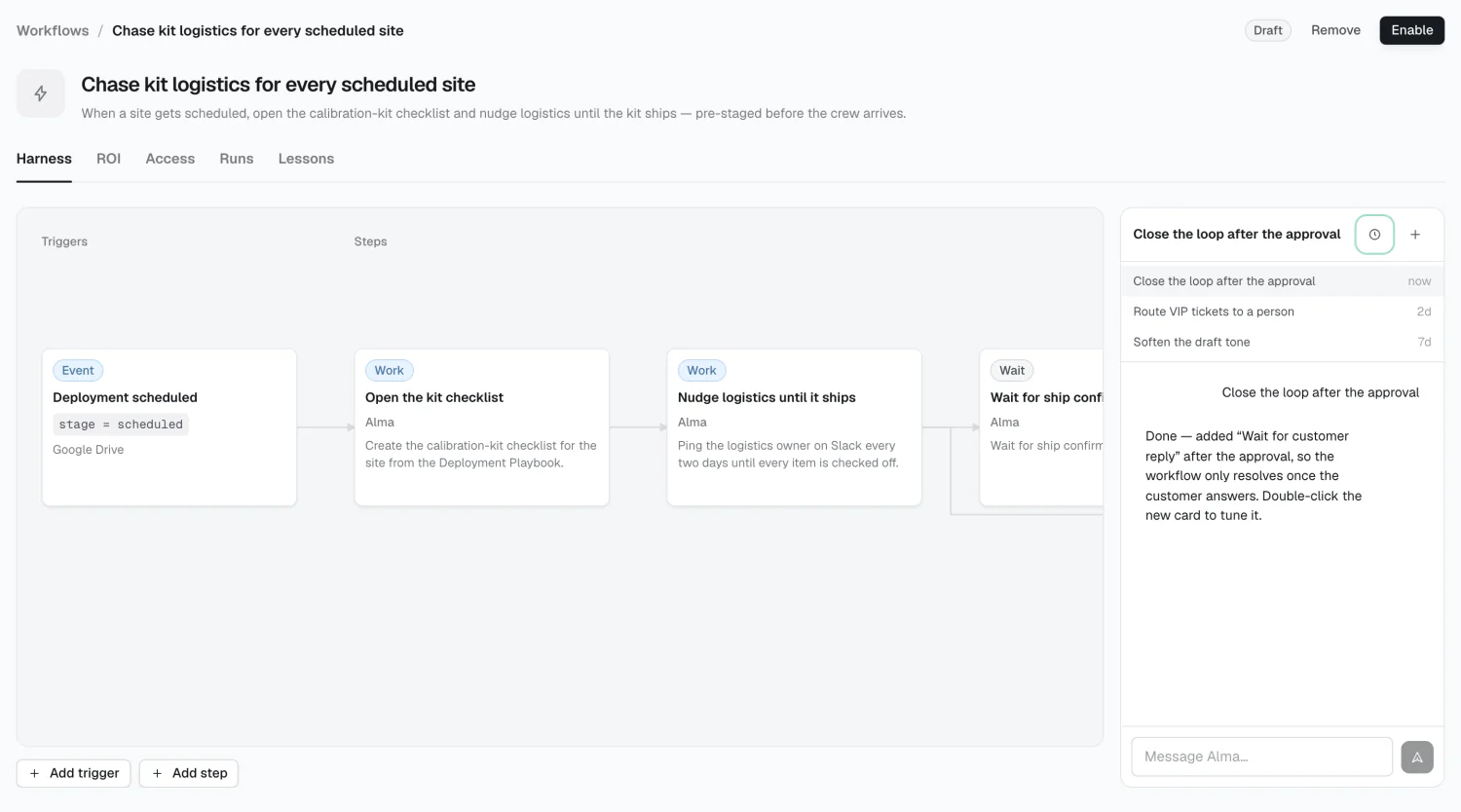
Section titled “Editing by chat”The rail on the right of the harness edits the canvas by conversation. Describe a change and Alma applies it card by card. Click a card first to give it context.
Access
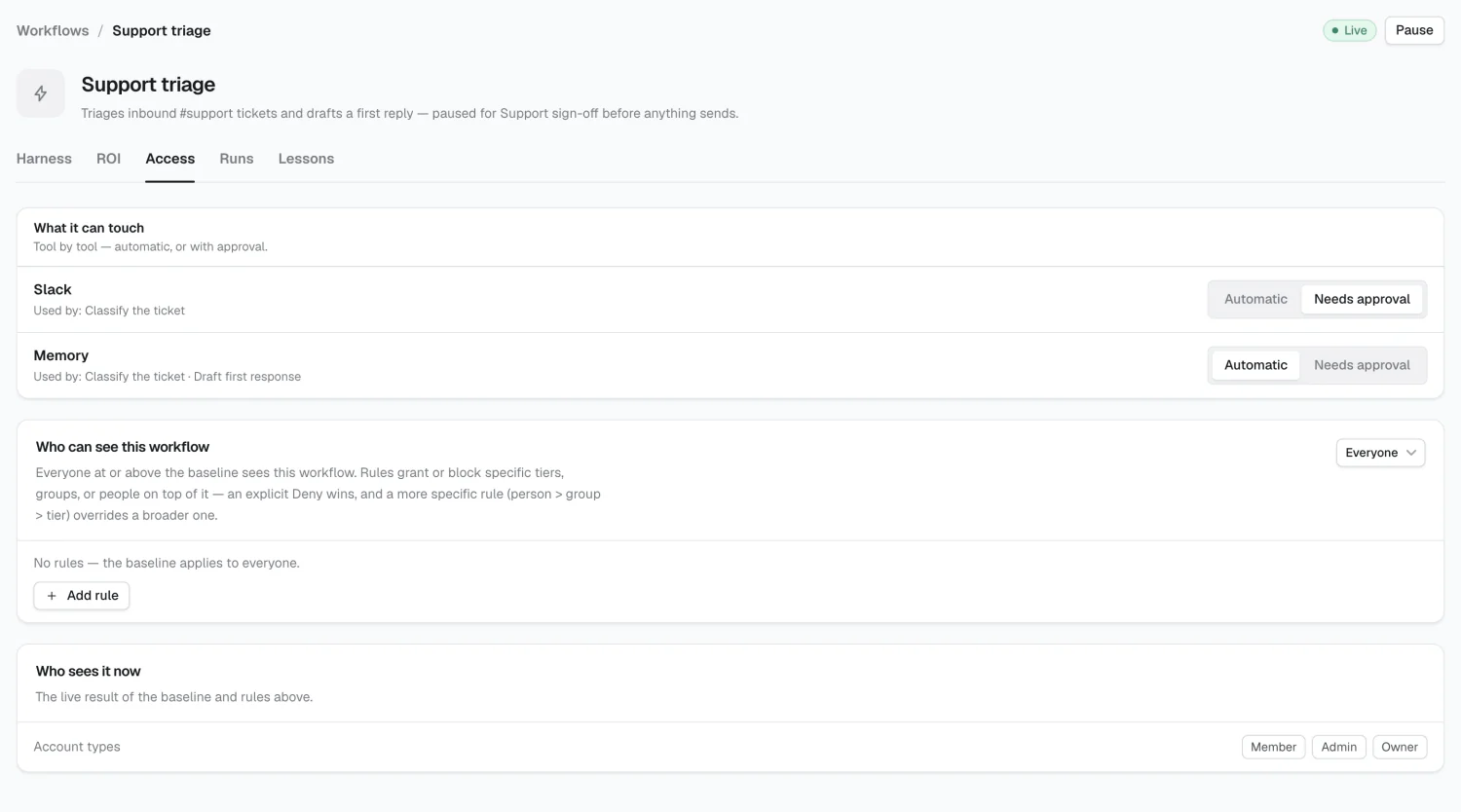
Section titled “Access”The Access tab controls two things.
Tool modes
Section titled “Tool modes”Every tool a step uses gets a row, set to Automatic or Needs approval.
New workflows default to Needs approval, unless your workspace changed that default in Security.
Access rules from Connections still apply on top of this. If a rule denies a tool to the people behind this workflow, setting it to Automatic doesn’t override that — the rule wins.
Visibility
Section titled “Visibility”A baseline audience, plus rules for specific groups and people, each with Can view, Can edit, or Full access, as Allow or Deny. Resolution: deny wins, and person > group > tier.
Use the Who sees it now card to check the result before relying on it.
Saving
Section titled “Saving”Triggers and steps save as a whole list — a deleted step is deleted for real on save. Removing a step’s checkpoint cancels any decision pending on it, so a suspended run aborts rather than waiting on a gate that no longer exists.
Result
Section titled “Result”The rightmost column shows where runs land: Success, Partial, Cancelled, or Escalated.
2026 Alma