
The activity log
Access rules describe what Alma may do. The Log tab shows what it did.
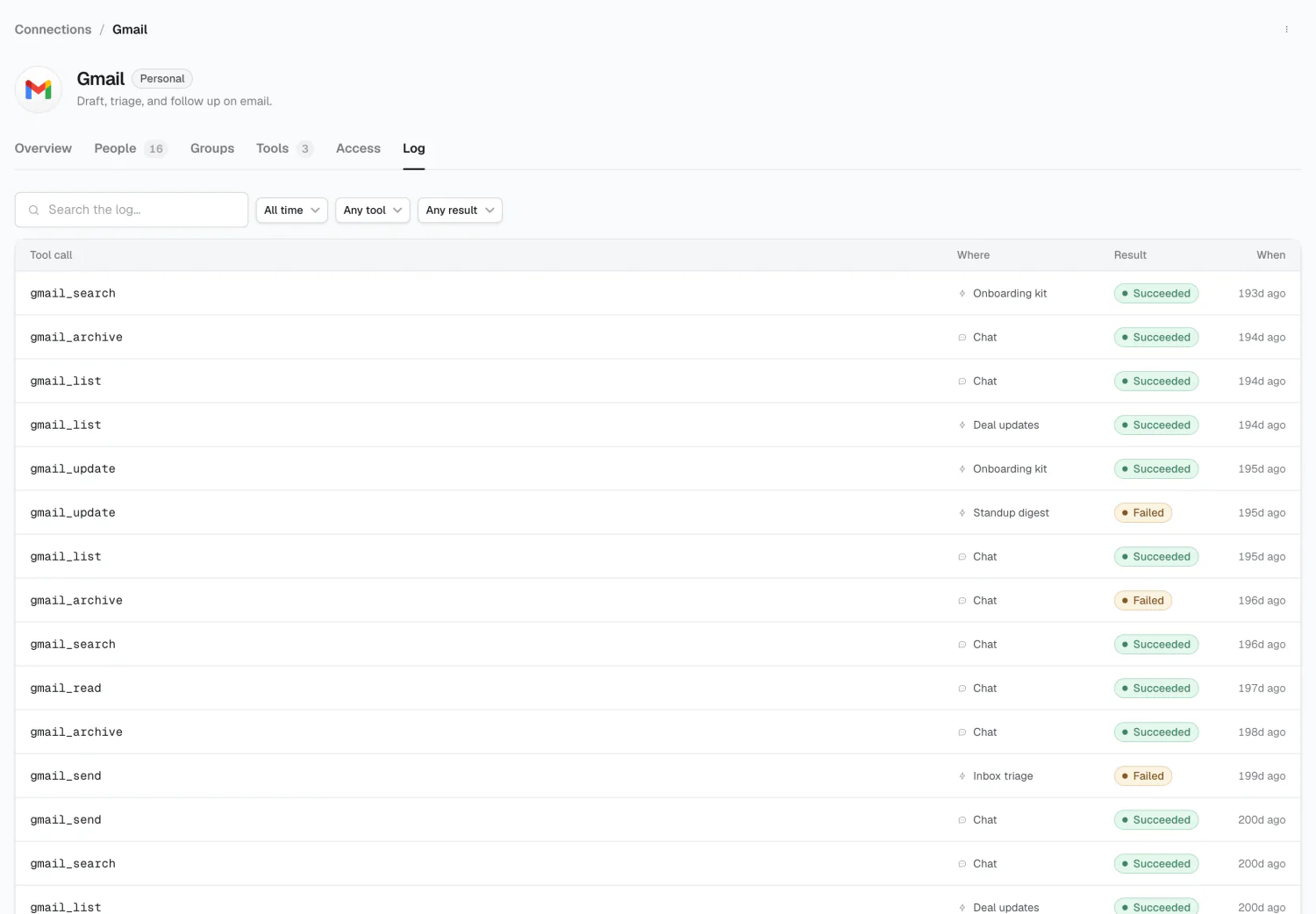
Each row is one tool call through this connection: the tool name, its origin, whether it succeeded, and when.
Where a call came from
Section titled “Where a call came from”| Shown as | Means |
|---|---|
| The workflow’s name | A workflow run |
| Chat | Someone talking to Alma |
| Agent | An agent acting outside a named workflow |
| MCP client | An external client, over MCP |
| API | A call through the public API |
| Briefing | A scheduled briefing |
Filtering
Section titled “Filtering”Search by tool name, then narrow by time window, tool, or result (Any result / Succeeded / Failed). Filter to Failed in the last hour to check whether something actually went through.
Empty state
Section titled “Empty state”A connection with no activity shows: “No activity yet — tool calls appear here once Alma uses this connection.”
If you expected activity and see none, check that the relevant workflow is enabled — a draft never runs.
Workspace-wide changes
Section titled “Workspace-wide changes”For changes to your configuration — a topic edited, an outcome archived, a workflow paused — see Activity instead. The Log tracks tool calls through one connection; Activity tracks changes across the workspace.
2026 Alma