
Tools & access
Connecting a tool gives Alma the ability to act in it. Access rules decide whether it’s allowed to, and for whom. An agent can only touch what the people behind it could — Alma’s automations inherit your access rules and never exceed them.
One ruleset, viewed from two places
Section titled “One ruleset, viewed from two places”Risk levels and defaults
Section titled “Risk levels and defaults”Every tool is classified by potential impact. Until a rule overrides it, this classification alone decides who may use it.
| Risk level | Default access |
|---|---|
| Read-only | Members and up |
| Low write | Members and up |
| Medium write | Admins and up |
| High write | Admins and up |
Most workspaces don’t need to change this. Write rules for exceptions.
Writing a rule
Section titled “Writing a rule”A rule has four parts:
Subject — an access level (Members, Admins, Owners), a group (shown as
{name} (group)), or a person.
Target — a whole toolkit (all of Slack) or a single tool
(alma_send_slack_message).
Effect — Allow or Deny.
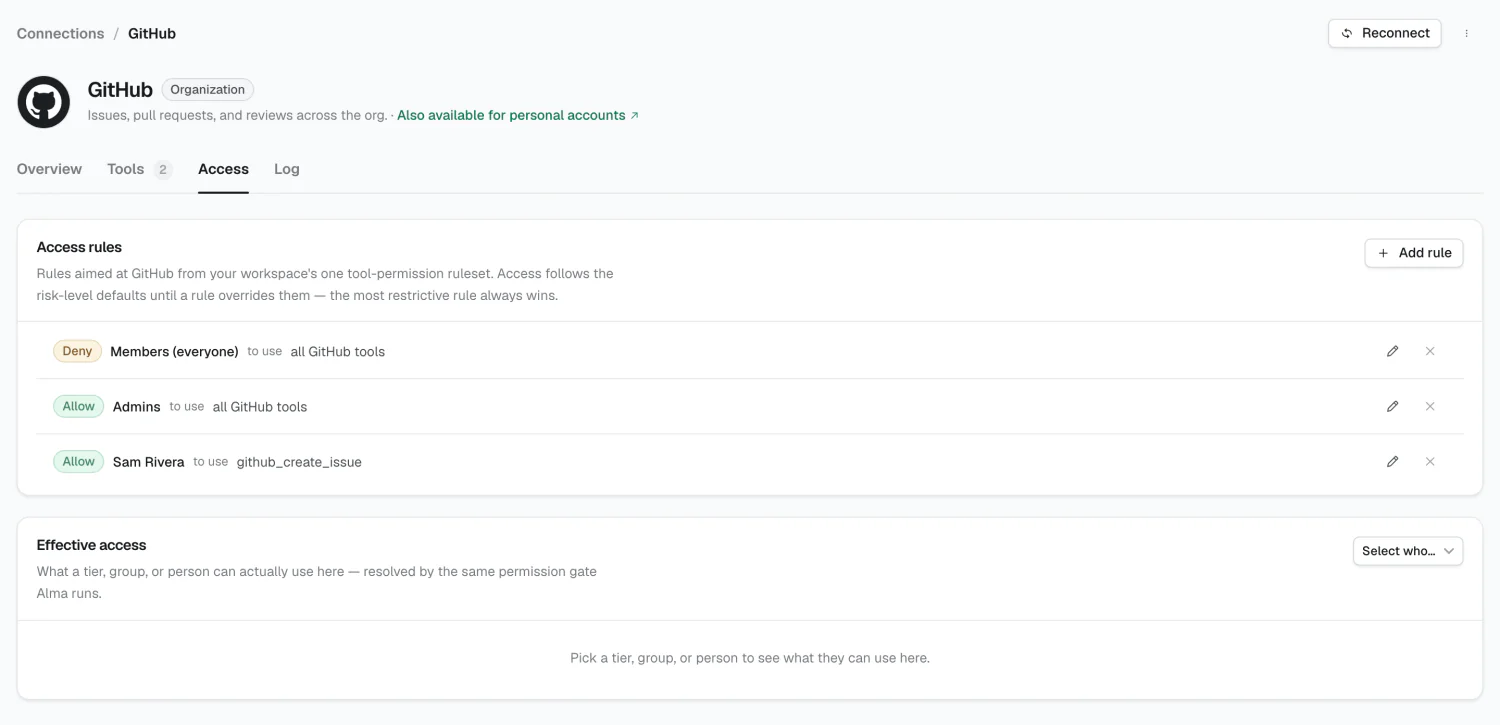
How rules resolve
Section titled “How rules resolve”Alma resolves every matching rule and picks a winner on two axes:
- Subject: person > group > access level.
- Target: tool > toolkit.
Ties resolve to deny.
This gives you the common pattern: deny a toolkit broadly, then allow the one tool or group that needs it.
Checking effective access
Section titled “Checking effective access”The Effective access card takes a subject — any access level, group, or person — and lists every tool with a verdict (Can use or Blocked) and the reason. It’s resolved by the same permission gate Alma runs at call time.
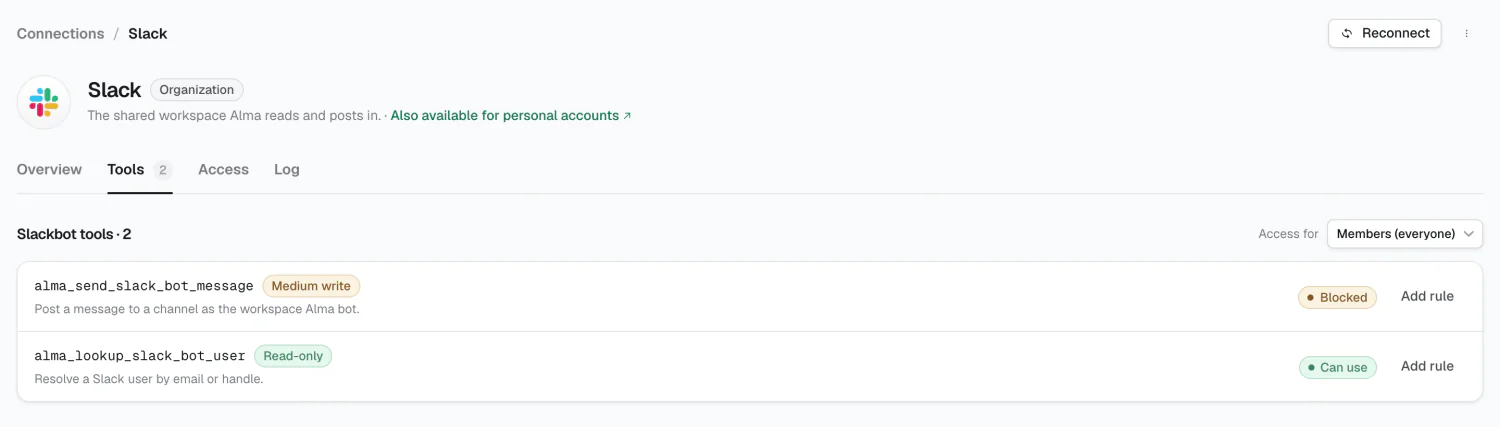
Check this after any rule change.
Who can do what here
Section titled “Who can do what here”Access is admin-and-implementor only; members see “Admins only.”
Tools is visible to everyone, but a member sees only their own access — they can’t preview others or add rules.
Workflows add a second layer
Section titled “Workflows add a second layer”A workflow adds a narrower question on top: should this tool run Automatically, or does it need approval, for this specific automation?
Access rules win. If a rule denies Slack to the group behind a workflow, setting that workflow’s Slack tool to Automatic doesn’t change anything. Workflow settings can only tighten. See Workflows → Access.
2026 Alma